
Quick answer
Can you play XenoFeels on Steam Deck?
XenoFeels Steam Deck compatibility is unconfirmed in the sources checked on October 24, 2026. Steam says the game is not yet available and lists Windows OS. No Deck rating or released-build test was verified, so the answer is unknown: neither playable nor unsupported has been established.
Steam Deck uses SteamOS, and Proton can run some Windows games on Linux. That general capability does not guarantee a specific game will work; controls, text, launchers, middleware and updates matter. XenoFeels has no released build to test against those conditions in this review.
Valve's Deck program separates games that work out of the box, games needing adjustments, games that do not function, and games not yet checked. A missing rating is not approval. After release, check the Steam store or your Library, then use dated player reports only as extra context.
This guide makes no launch, display or controller promise. Use Steam for current release and platform status. The system requirements page covers PC hardware; this page explains how to verify the handheld experience without guessing from screenshots or Proton in general.
XenoFeels Steam Deck guide
XenoFeels Steam Deck compatibility status
These facts are separate: Steam lists availability and PC requirements; Valve's Deck program explains handheld review categories.
| Check | What the source currently says | What you can conclude |
|---|---|---|
| Game availability | Steam said XenoFeels was not yet available and showed Coming soon. | This listing provides no released full-game build to test. |
| Listed operating system | The minimum and recommended requirements name Windows OS. | This does not confirm or rule out Proton use on Deck. |
| Deck rating | No XenoFeels compatibility label appeared in the checked product text. | The Deck category is unconfirmed; do not infer one. |
| Proton | Valve describes Proton as a way to run Windows games on Linux. | That general tool is not a XenoFeels test. |
| Hands-on result | No released build was tested on Deck for this article. | Battery, frame rate, controls and launch behavior remain unknown. |
Sources checked and what they prove
Steam establishes the game's status; Valve defines its Deck labels. The existing official screenshots below are PC media, not Deck captures or compatibility tests.
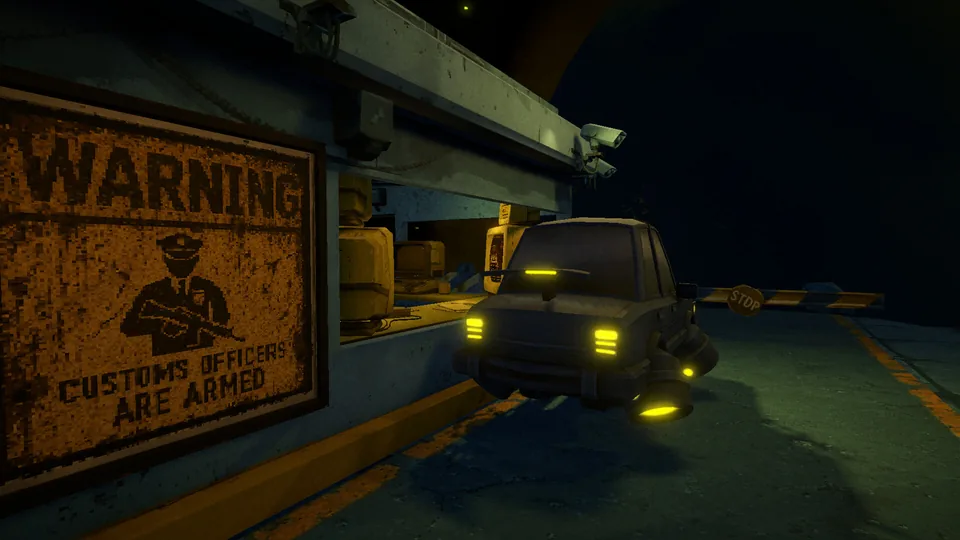
Steam: release and operating system
The product page is the first-party source for availability and requirements. On October 24, 2026 it said Coming soon and listed Windows OS; this is not a Deck rating.
Valve: Deck rating meanings
Verified works out of the box; Playable may need manual adjustments; Unsupported is not functional; Unknown has not been checked. Ratings describe a reviewed expectation.
Valve: Proton
Proton lets some Windows games run on Linux using Wine and graphics components. It does not establish XenoFeels support or behavior.
No game-specific test
No released XenoFeels build was tested, and no Deck category appeared in the checked product text. This guide leaves that gap open rather than predicting a result.
How to check XenoFeels Steam Deck support after release
When XenoFeels becomes available, check the exact Steam product page. Search snippets, fan wikis and screenshots cannot replace its current label. If status changes after a patch, record the date and build because compatibility can change with game updates, SteamOS and Proton.
Keep Valve's category separate from your own test. A rating describes Valve's review; a session describes one build on one device. Record both rather than turning one launch into a universal claim.
-
1. Confirm release
Check the official Steam page for a playable release, supported OS and current requirements. Before installation exists, reports may describe a demo or older state.
-
2. Read the Deck label
Check the store page and your Library. If no category appears, say it is not displayed; do not infer Verified or Unsupported.
-
3. Review Valve's four areas
Input, display, seamlessness and system support cover controls, legible text, controller-friendly launchers and Proton support. These are criteria, not XenoFeels results.
-
4. Test the current build
Install through Steam and note the game version and Proton setting. Check launch, menus, controls, text and a full session. A partial launch is not proof of full compatibility.
-
5. Date any report
Include Deck model, build, rating and changes. Separate a community workaround from Valve's rating, and note settings so another test can be repeated.
What a Steam Deck compatibility label does and does not prove
Compatibility claims are easy to overstate when a game has not launched. Keep the store facts, Valve's general guidance, community reports and direct testing in separate boxes.

| Signal | Useful for | Do not claim |
|---|---|---|
| Windows requirement | Identifying the operating system named by the developer on Steam. | That Windows-only automatically means it will or will not work through Proton. |
| Proton documentation | Understanding the Linux compatibility layer used by Steam Play. | That every Windows title, including XenoFeels, is supported. |
| Verified / Playable label | Checking Valve's reviewed expectation and whether adjustments may be needed. | That a label was issued for XenoFeels when none is visible. |
| Community report | Finding a dated account of one player's hardware and settings. | An official rating, a guarantee for every Deck, or proof about another game build. |
| PC screenshot or trailer | Seeing the game's art and interface on the shown recording setup. | Deck resolution, controller support, frame rate or battery performance. |
| Current store status | Confirming availability and the listed platform at the time checked. | A future release date, Deck port or compatibility result that Steam has not published. |
XenoFeels Steam Deck compatibility FAQ
Official compatibility sources
- Official XenoFeels Steam page - Availability, supported operating system, requirements and developer announcements; checked October 24, 2026.
- Steam Deck compatibility program - Valve's four categories and Verified review areas: input, display, seamlessness and system support.
- Steamworks Proton documentation - Valve's general explanation of Proton for running Windows games on Linux; not a XenoFeels test.